
Adaptive Checkpoints
FIRE’s breakthrough is adaptive checkpoints that scale with complexity. Instead of a fixed number of gates, FIRE adjusts oversight based on two inputs:- Work Complexity: Low, Medium, or High
- Your Autonomy Config: Set during project initialization
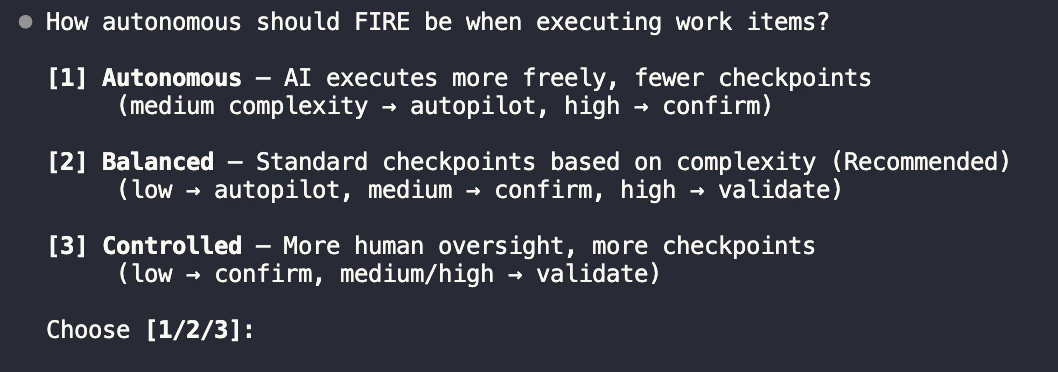
Mode Comparison
Autopilot
0 checkpoints - AI executes directly
Confirm
1 checkpoint - Human confirms plan
Validate
2 checkpoints - Design + plan review
Autopilot Mode (0 Checkpoints)
AI executes directly, generates walkthrough for review.When to Use
- Bug fixes with clear reproduction steps
- Minor updates (text changes, config tweaks)
- Well-defined CRUD operations
- Adding tests for existing code
- Documentation updates
Flow
Start → AI Plans → AI Executes → Walkthrough No human checkpoints. AI loads context, executes changes directly, and generates a walkthrough for post-review.Example
Best Practices
Use Autopilot for reversible changes where the cost of a mistake is low.
- Keep Autopilot tasks small and focused
- Always review walkthroughs after completion
- Upgrade to Confirm if you’re unsure
Confirm Mode (1 Checkpoint)
AI presents plan, human confirms, AI executes.When to Use
- Standard feature implementation
- API endpoint creation
- Component development
- Database queries (non-schema)
- Integration with external services
Flow
Start → AI Plans → ✋ Human Confirms → AI Executes → Walkthrough One checkpoint: you review the AI’s plan before execution. Reject to provide feedback and get a revised plan.Example
Providing Feedback
If the plan isn’t right, reject and provide feedback:Validate Mode (2 Checkpoints)
AI generates design doc, human reviews design, human approves implementation.When to Use
- Security-sensitive features (auth, permissions)
- Payment and billing logic
- Core architecture changes
- Database schema modifications
- External API integrations with side effects
- Features affecting multiple modules
Flow
Start → AI Designs → ✋ Human Reviews → AI Plans → ✋ Human Approves → AI Executes → Walkthrough Two checkpoints: first review the design approach, then approve the implementation plan. This separates “is this the right approach?” from “is the plan complete?”Example
Two-Stage Review
Validate mode separates design review (is this the right approach?) from implementation approval (is this plan complete?).
- Starting implementation on a flawed design
- Missing edge cases caught during design review
- Scope creep during implementation
Choosing the Right Mode
Decision Matrix
| Factor | Autopilot | Confirm | Validate |
|---|---|---|---|
| Complexity | Low | Medium | High |
| Reversibility | Easy | Moderate | Difficult |
| Security Impact | None | Low | High |
| User Data | No | Read | Write |
| External Services | No | Read | Write |
| Schema Changes | No | No | Yes |
Quick Guide
Autopilot - Trust the AI
Autopilot - Trust the AI
- Typo fixes
- Log statement additions
- Test additions for existing code
- Config value changes
- Comment updates
Confirm - Verify the Plan
Confirm - Verify the Plan
- New API endpoints (GET, non-sensitive)
- UI components
- Utility functions
- Query optimizations
- Refactoring (behavior-preserving)
Validate - Full Review
Validate - Full Review
- Authentication/authorization
- Payment processing
- Data migrations
- Third-party integrations (with side effects)
- Schema changes
- Security-sensitive features
Run Scope
Run scope determines how many work items execute in a single run. This is separate from execution mode—you can batch multiple Autopilot items together, or run Validate items one at a time.Scope Options
Single
One work item per runMost controlled. Each item gets its own run with dedicated walkthrough.Best for: Learning the codebase, high-stakes changes, detailed review needs
Batch
Group by execution modeRespects dependencies. Groups Autopilot items together, Confirm items together, etc.Best for: Balanced workflow, mixed complexity work
Wide
Maximum items per runMinimal interruption. All compatible items execute together.Best for: Experienced users, rapid iteration, well-understood changes
Scope Comparison
| Scope | Items per Run | Grouping Strategy | Interruptions |
|---|---|---|---|
| Single | 1 | Each item isolated | Per item |
| Batch | By mode | Autopilot, Confirm, Validate grouped | Per mode group |
| Wide | All compatible | Maximum batching | Minimal |