Overview
The CLI Dashboard is an interactive terminal UI for monitoring your development progress in real-time. It works with all three flows (FIRE, AI-DLC, Simple) and provides live updates as your project state changes.The CLI Dashboard is the terminal counterpart to the IDE Extension. Use it when working with terminal-based AI tools like Claude Code or OpenAI Codex.
Quick Start
q to quit.
Dashboard Screenshots
Git Changes Tab (Commit Diff Preview)
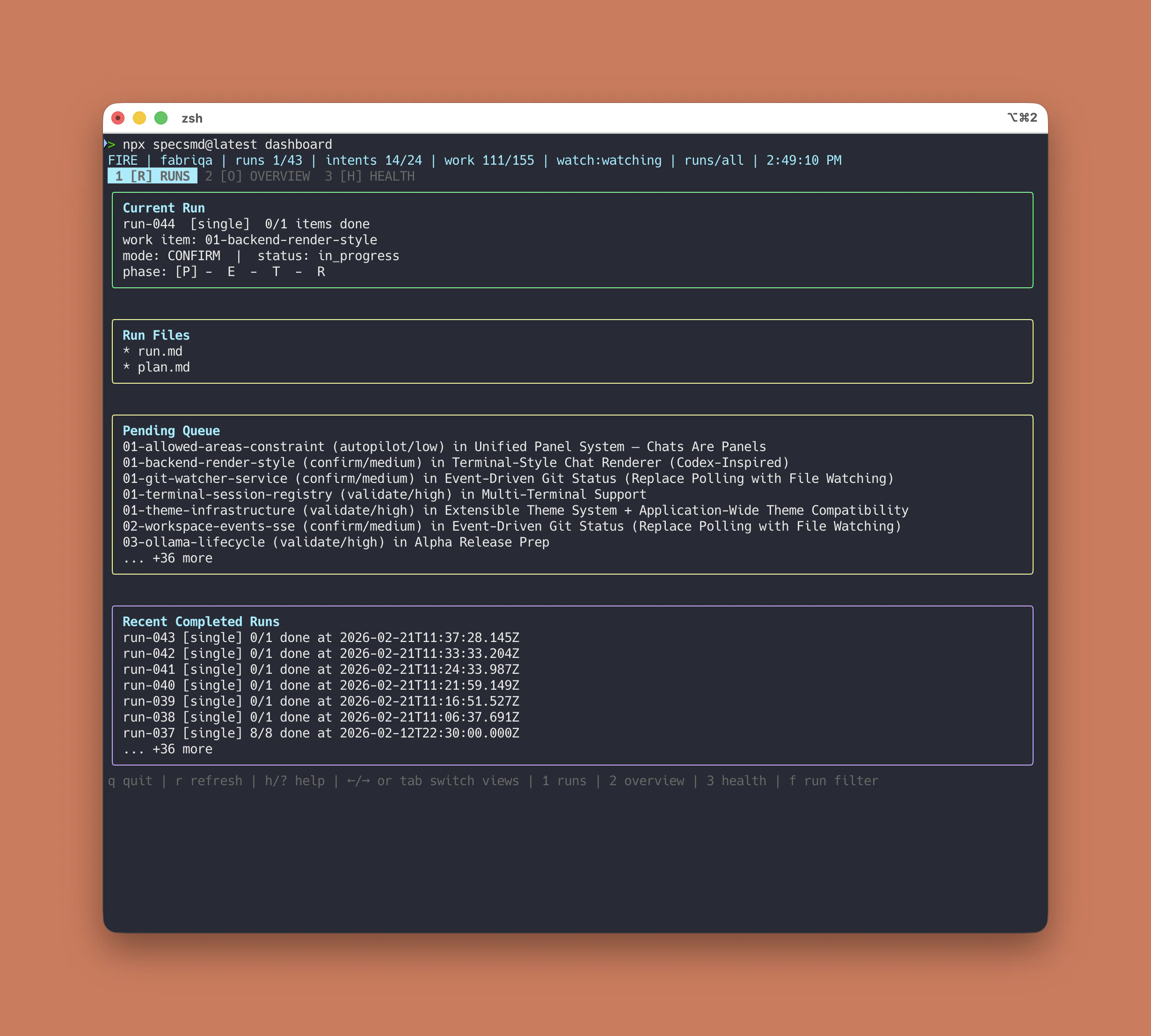
Active Tab (File Preview Pane)
Tabs
The dashboard has five tabs, switched with number keys1–5:
Active Items (1)
Shows currently active runs (FIRE), bolts (AI-DLC), or specs (Simple) in the selected worktree. Includes a split preview pane for inspecting files and an “other worktrees” section showing activity across branches.
Intents (2)
Lists all intents in your project. Toggle between pending (
n) and completed (x) intents.Standards & Health (4)
Project standards files (constitution, tech-stack, coding-standards), progress stats, warnings, and error details.
Keyboard Shortcuts
Global
| Key | Action |
|---|---|
1–5 | Switch tab |
r | Refresh |
h / ? | Toggle help overlay |
] / m | Switch flow (when multiple detected) |
[ | Switch flow backward |
g / G | Next / previous section |
q / Ctrl+C | Quit |
Navigation & Preview
| Key | Action |
|---|---|
↑ ↓ / j k | Navigate rows |
Enter | Expand / collapse folder |
v / Space | Preview file in split pane |
v v | Fullscreen preview |
Tab | Switch focus between main and preview |
o | Open file in default app |
Esc | Close overlay / preview |
Section Focus
| Key | Tab | Jumps to |
|---|---|---|
a | 1 | Active item |
f | 1 | Files |
b | 1 | Worktree switcher |
u | 1 | Other worktrees |
i | 2 | Intents |
n / x | 2 | Next / completed toggle |
c | 3 | Completed |
s | 4 | Standards |
t | 4 | Stats |
w | 4 | Warnings |
e | 4 | Errors |
d | 5 | Git diff |
Git Worktree Support
The dashboard auto-discovers git worktrees and shows activity across branches.- Worktree switcher — press
bon the Active tab to switch between worktrees - Cross-worktree view — the “Other worktrees” section shows active runs/bolts in other branches
- Auto-selection — picks the current worktree by default, falling back to main
CLI Options
| Option | Default | Description |
|---|---|---|
--flow <flow> | auto-detect | Flow to inspect: fire, aidlc, or simple |
--path <dir> | current directory | Workspace path |
--worktree <name> | auto-select | Initial worktree (branch name, id, or path) |
--refresh-ms <n> | 1000 | File watch interval in ms (200–5000) |
--no-watch | false | Render once and exit (non-interactive) |
Examples
Icon Sets
Configure icons via theSPECSMD_ICON_SET environment variable:
| Value | Style |
|---|---|
ascii | Plain ASCII characters (default) |
unicode | Unicode symbols |
nerd | Nerd Font icons (requires a Nerd Font) |
Video Walkthrough
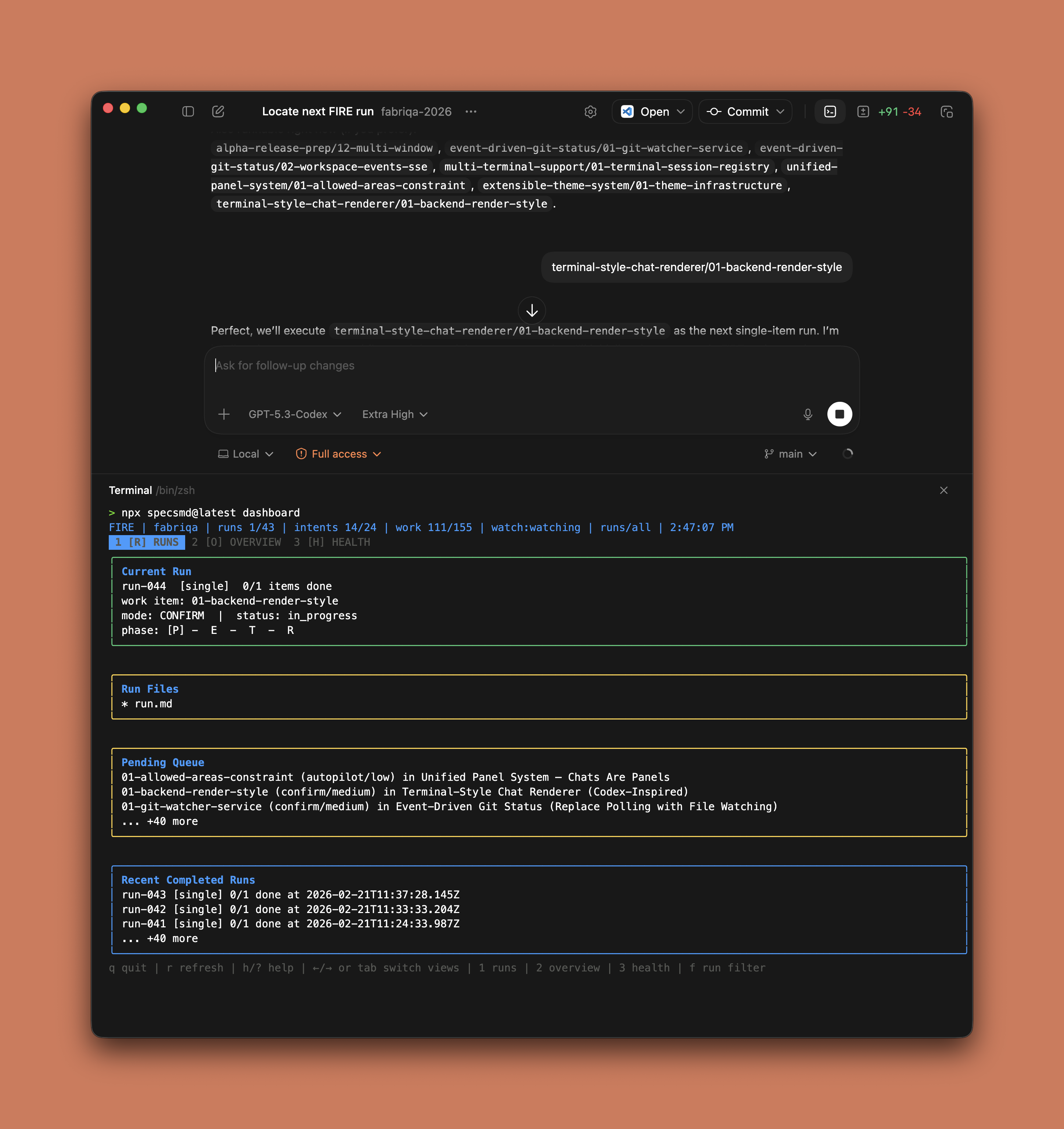
CLI Dashboard with Codex Desktop App
Watch the dashboard in action while building with Codex