
Overview
The specsmd IDE extension provides a visual dashboard for tracking your development progress across both FIRE Flow and AI-DLC Flow. Monitor runs/bolts, browse specs, and see project metrics—all from your IDE sidebar.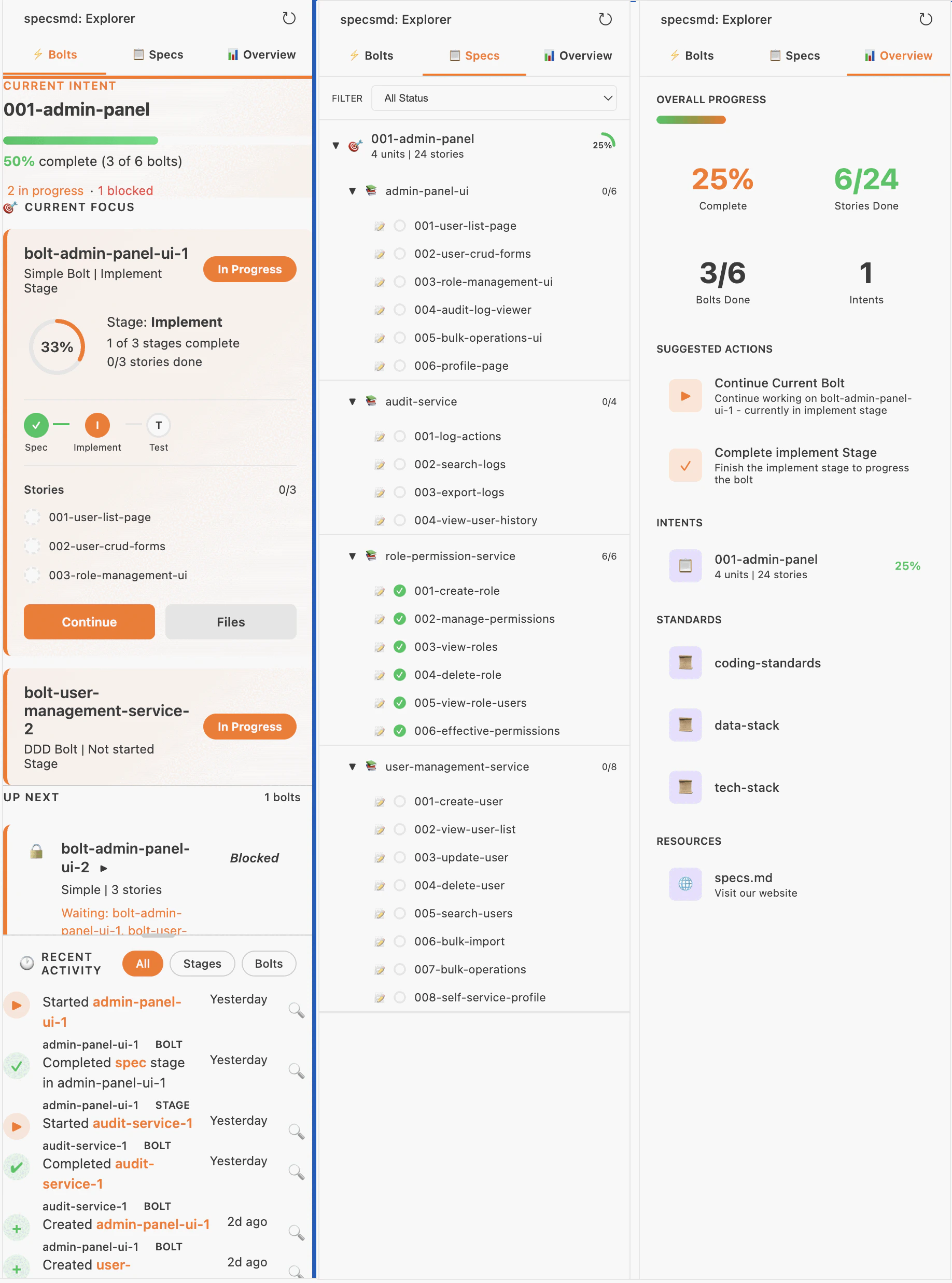
Works with VS Code-based IDEs including Cursor, Google Antigravity, Windsurf, GitHub Codespaces, Gitpod, and Amazon Kiro.
Installation
- VS Code Marketplace
- Open VSX Registry
- Manual Install (VSIX)
Install directly from the Microsoft VS Code Marketplace:Compatible IDEs: VS Code, GitHub Codespaces
- Open VS Code (or Cursor, Windsurf, etc.)
- Go to Extensions (
Cmd+Shift+X/Ctrl+Shift+X) - Search for “specsmd”
- Click Install
View on VS Code Marketplace
Install from the official VS Code Marketplace
Features
The extension supports both FIRE Flow and AI-DLC Flow. It automatically detects which flow you’re using and adapts the interface accordingly.FIRE Flow Views
If you’re using FIRE Flow (.specs-fire/ folder), the extension provides:
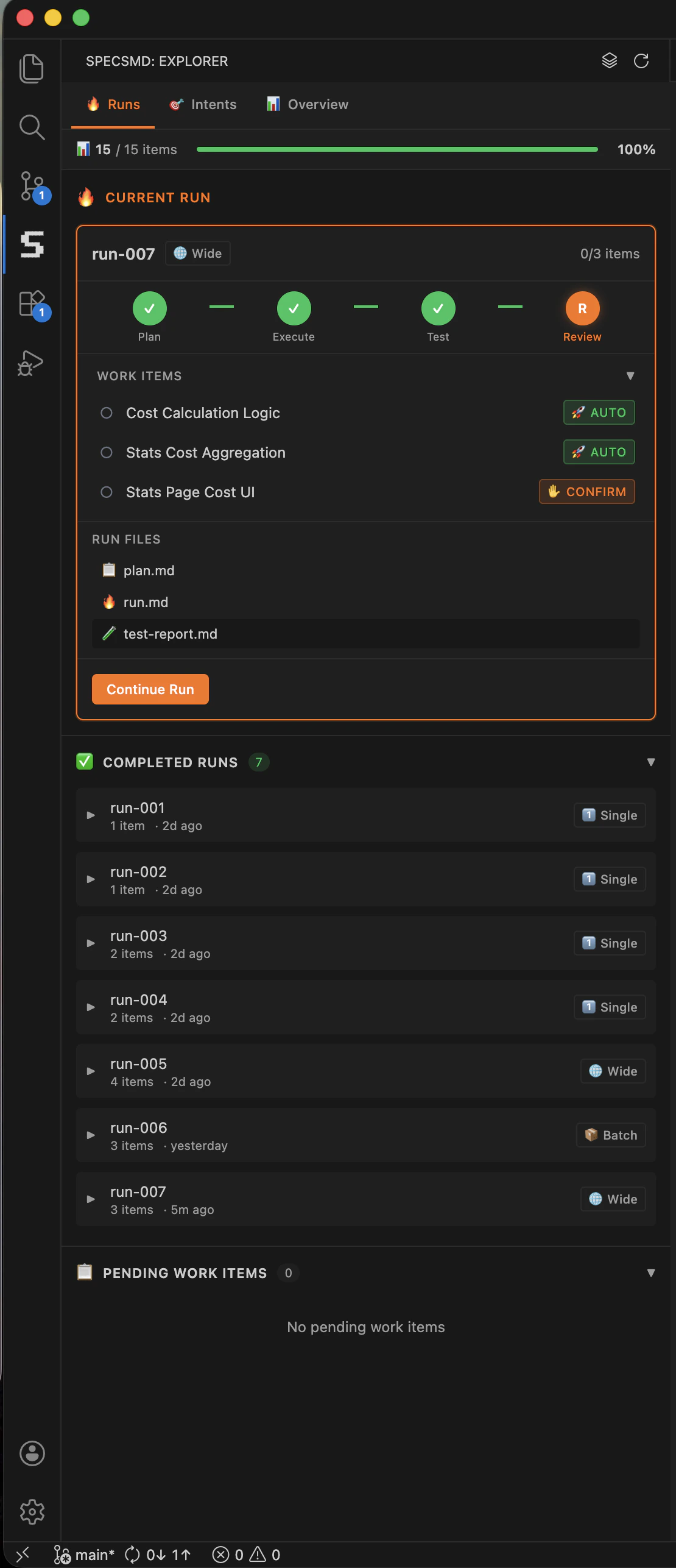
- Runs Tab - Track active runs and completed runs with file listings
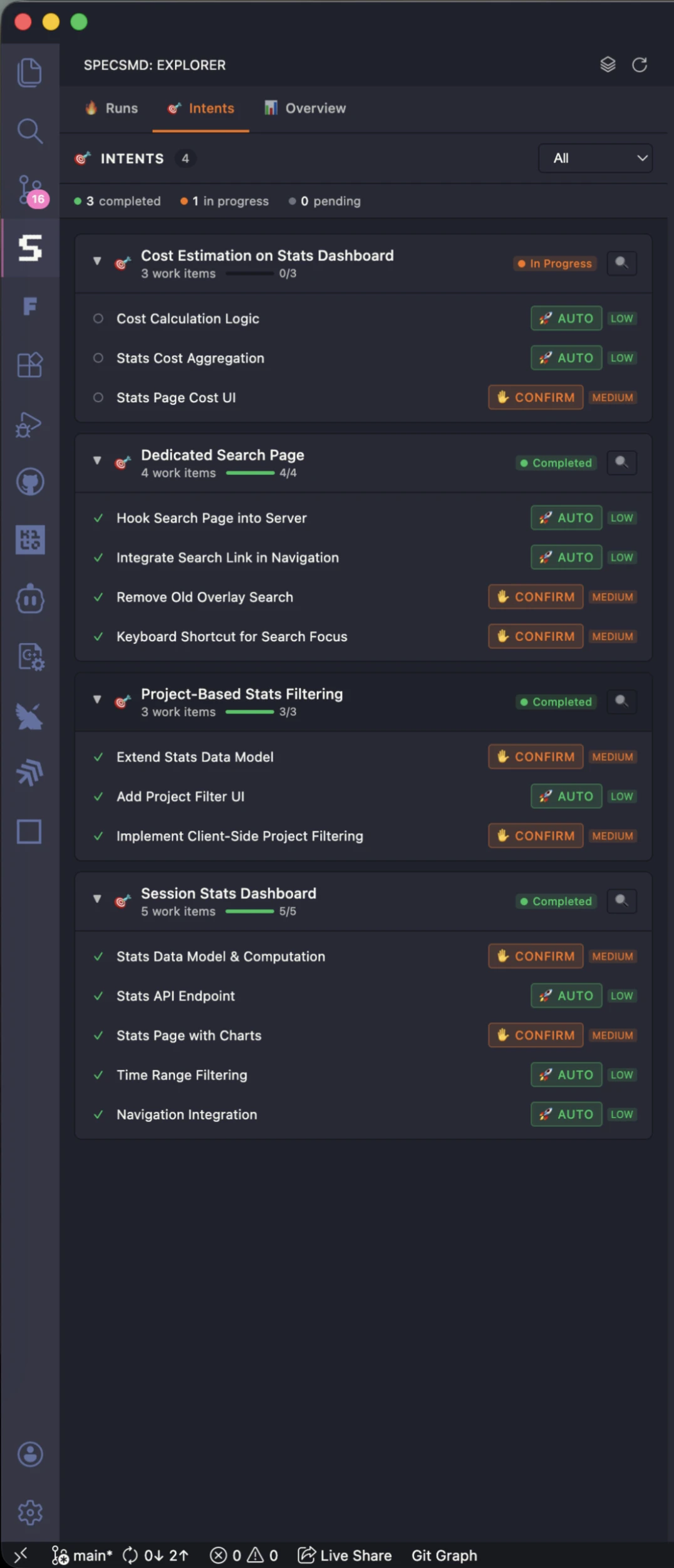
- Intents Tab - Browse intents and work items with progress indicators
- Overview Tab - Project-wide metrics and quick actions
AI-DLC Flow Views
If you’re using AI-DLC Flow (memory-bank/ folder), the extension provides three main views:
Bolts Tab
Track your bolt execution progress in real-time.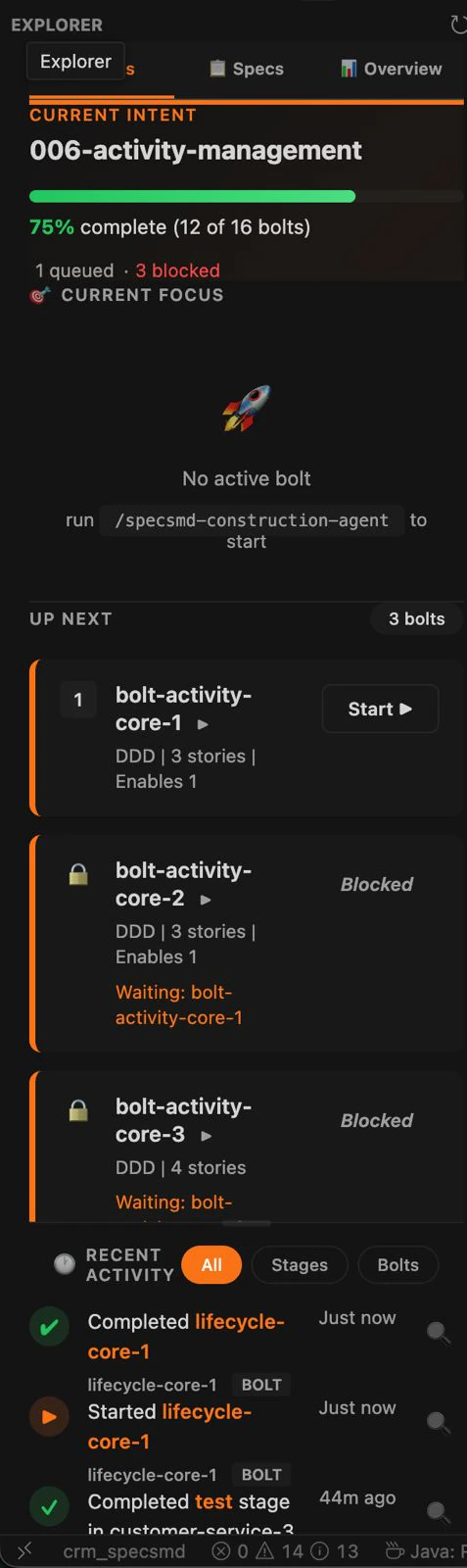
Current Focus
Current Focus
Shows active bolts being worked on with:
- Bolt name and type (DDD, Simple)
- Current stage progress
- Stage pipeline with status indicators
- Stories list with completion status
Up Next Queue
Up Next Queue
Shows pending bolts ready to be started:
- Unblocked bolts first (higher priority)
- Blocked bolts with dependency info
- Quick start button for each bolt
Recent Activity
Recent Activity
Timeline of bolt and stage completions:
- Filterable by All, Stages, or Bolts
- Relative timestamps
- Click to navigate to files
Specs Tab
Browse your project specifications hierarchically.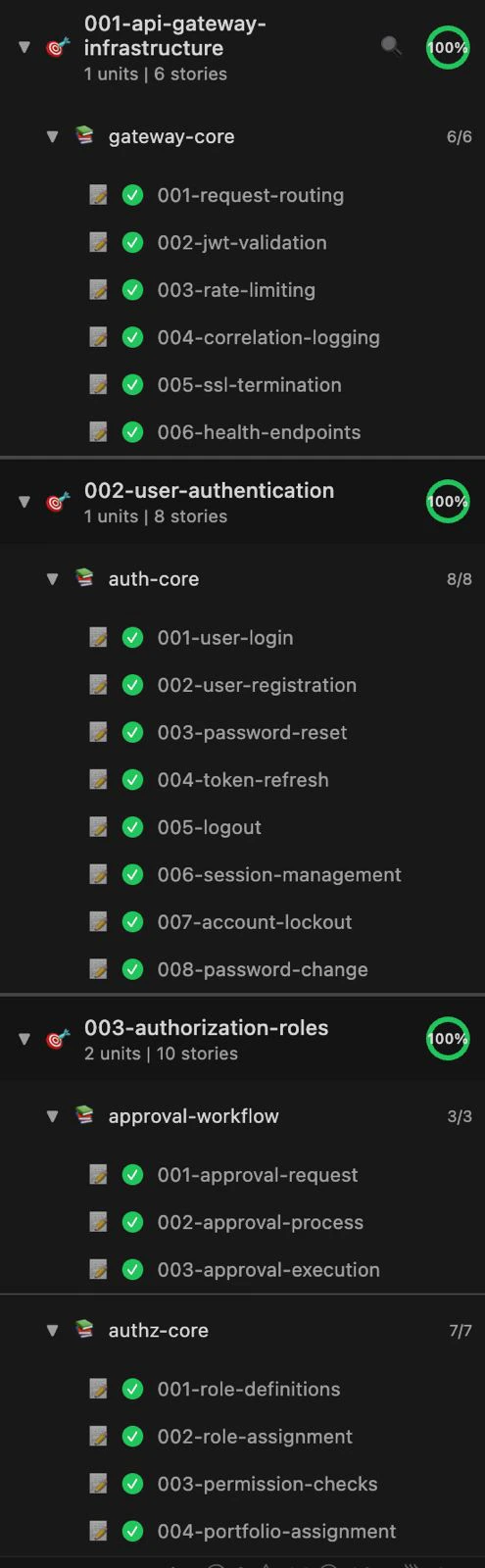
- Intents - High-level goals with progress indicators
- Units - Cohesive work elements within intents
- Stories - Individual user stories with status
Overview Tab
High-level project metrics and quick actions.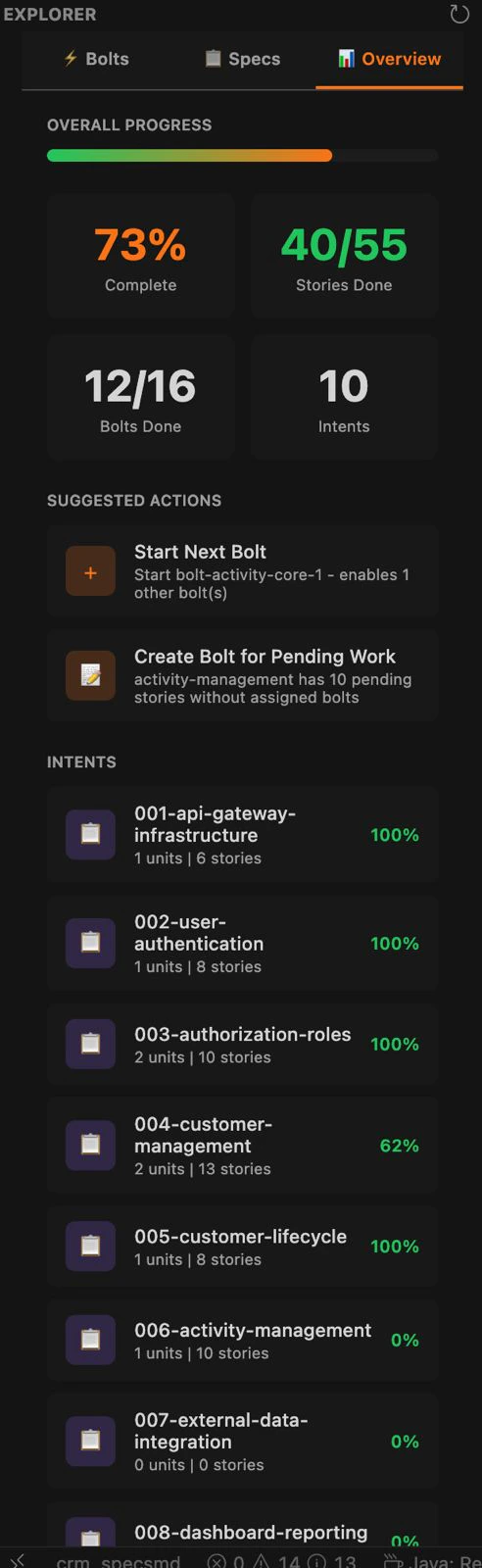
- Progress - Overall completion percentage
- Stats - Active, queued, done, and blocked bolts
- Suggested Actions - AI-recommended next steps
- Standards - Quick access to project standards
Activation
The extension automatically activates when it detects:- A
memory-bank/folder in your workspace (AI-DLC Flow) - A
.specs-fire/folder in your workspace (FIRE Flow) - A
.specsmd/folder in your workspace
Make sure you’ve run
npx specsmd@latest install first to set up your project structure.Refreshing Data
The extension watches your memory-bank files for changes. To manually refresh:- Click the refresh icon in the sidebar header
- Or use Command Palette: “specsmd: Refresh”
Troubleshooting
Extension not showing in sidebar
Extension not showing in sidebar
Data not updating
Data not updating
Click the refresh icon in the sidebar header, or check that your memory-bank files are saved.
Extension not working in Cursor/Windsurf/other IDEs
Extension not working in Cursor/Windsurf/other IDEs
The extension is compatible with VS Code-based IDEs. Install from the correct registry:
- VS Code Marketplace — VS Code, GitHub Codespaces (Microsoft products only)
- Open VSX Registry — Cursor, Windsurf, Amazon Kiro, Google Antigravity, VSCodium, Gitpod, Google IDX, Eclipse Theia, Code-Server
- VSIX file — Manual installation for any compatible IDE
Next Steps
Choose Your Flow
Compare Simple, FIRE, and AI-DLC flows
FIRE Quick Start
Ship your first feature with FIRE Flow